
 AI Zombie Video
This guide walks through the studio, from preparing your portraits to finding your video in My creations.
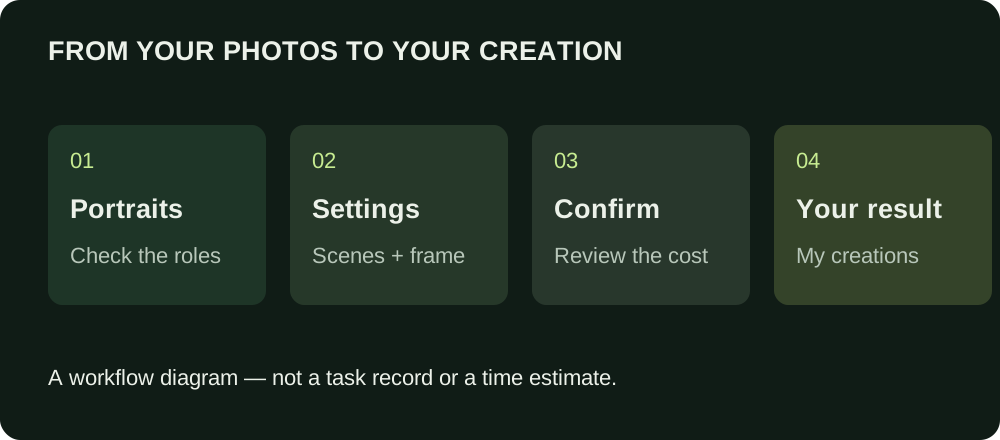
Know what the current studio makes
The current video workflow uses two authorized adult portraits to create a fictional encounter followed by a warmer memory. The intended direction has one infected character in the present and both people healthy in the memory. It asks for no weapons or physical contact. Read the full story direction if you arrived after seeing a different zombie trend elsewhere.
| Item | Current video workflow |
|---|---|
| Inputs | Two separate adult portraits |
| Roles | Zombie and human, with a Swap roles control |
| Scene choices | Available encounter and memory settings |
| Video length | 15 seconds |
| Resolution | 480p |
| Framing | Portrait 9:16 or landscape 16:9 |
| Sound | Delivered according to generation settings |
| Charge | 100 project credits in total; review before submission |
| Results | Creation page and My creations; service email notifications when enabled |
The clip length is not a generation-time estimate. Internal character images support the video workflow; they are not a second product you should expect to receive separately. The studio supplies the scene instructions and does not accept a free-form prompt.
Before you begin: use the current settings and charge shown in the studio.
Add the two portraits and check their roles
Open the creation studio. Add one supported portrait to each slot, then read the role labels. The first starts as the zombie and the second as the human. Use Swap roles if needed. Replacing a photograph changes the file in that slot; inspect its label rather than assuming the assignment changed too.
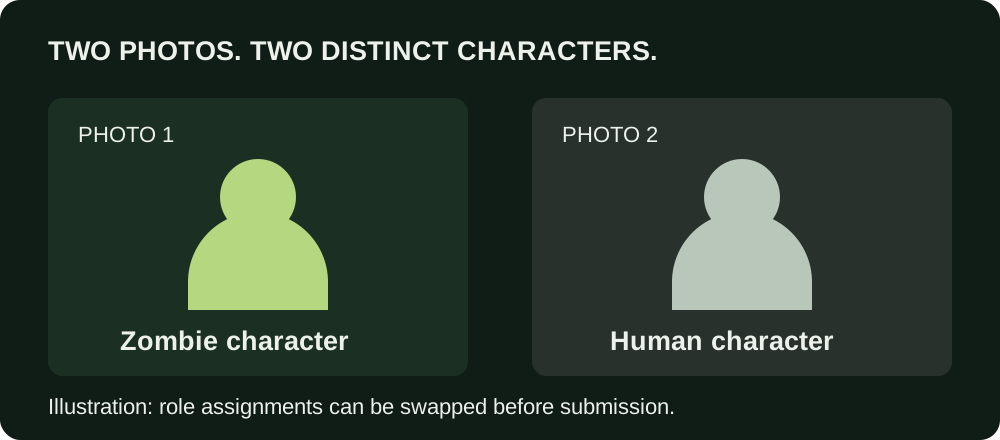
Input-role illustration. For actual photographs, use the studio's own labels after selecting or swapping.
Use still JPG, PNG or WebP files, up to 2 MiB and 20 megapixels each. Animated images are unsupported. If you need help with focus, cropping or permission, start with the photo preparation guide.
You may prepare your photos before continuing through the account requirements. If the site asks you to sign in or verify your email, follow that existing flow. If registration or creation is unavailable, do not assume uploading a preview has created a task. The notice on the page explains what is available.
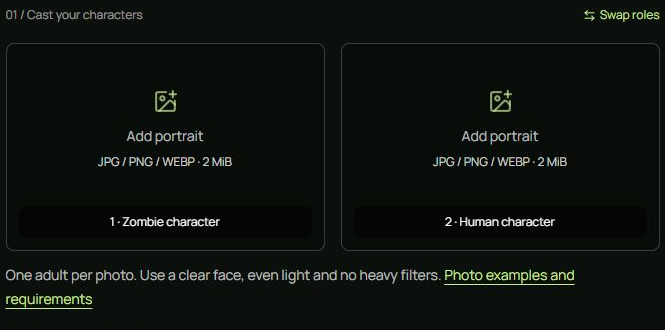
Choose your two portraits, then check the role labels before continuing.
Choose the encounter and the memory
The studio separates Where the encounter happens from Where the memory takes place. This gives you two decisions about atmosphere rather than requiring a complete written scene.
| Setting group | Currently configured options | What it guides |
|---|---|---|
| Encounter | Gas station in the fog; Abandoned train station; Rooftop in the rain | The threatening present |
| Memory | Wheat field at sunset; Beach at golden hour; Summer lakeside | The warmer past |
Available settings can change, so the enabled options in the studio take precedence over this table. A selected location is a creative instruction, not an exact background match or a validated template with a guaranteed outcome.
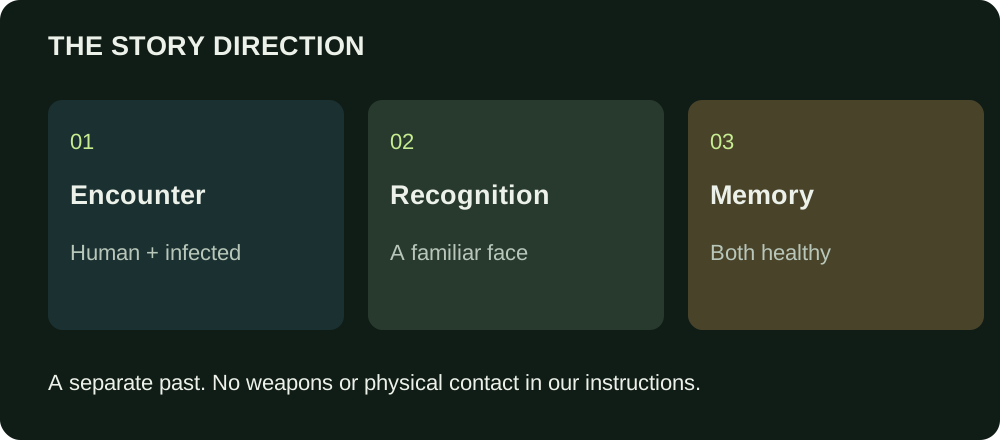
Keep the two times distinct when you later review the video. Both people appearing healthy in a warm setting should read as a memory, rather than an unexplained cure in the present. Expressions, surroundings and transition timing can vary.
Choose portrait or landscape framing
Use Portrait · 9:16 when you want a vertical frame. Use Landscape · 16:9 when you want a wider composition. Choose based on your intended viewing format, not on an assumption that switching aspect ratio increases the resolution or changes the story.
The current 15-second, 480p video specifications remain the same across those frame choices. Audio is delivered according to the generation settings shown in the studio. You can edit downloaded videos in another tool to add captions or make sound adjustments, subject to the rights for whatever you add.
Review the charge and confirmation
Read the photo-access notice and the required age, policy and photo-permission acknowledgments. Processed inputs and delivered media may use public links. A local preview stays in your browser until submission; confirming the creation uploads the required inputs and commits the task charge.
The first Create video action opens a confirmation when the prerequisites are satisfied. Review the cost and selected scene summary. The final confirmation is the action that submits the paid task.
| Action | What it means |
|---|---|
| Choose or replace a local photo | Prepare the draft; not a new paid task |
| Change roles, scenes or framing | Adjust the draft before confirmation |
| Open the confirmation | Review your choices and the charge |
| Cancel or close that confirmation | Return to the draft; this is not the final submission |
| Final confirmation | Submit the task using the reviewed settings and charge |
If you change photos, settings or account state while preparing, review again rather than relying on an old confirmation. Do not repeatedly confirm because a response seems slow.
Follow the task after submission
Once submission is confirmed, work continues in the background. You can leave the page and return through My creations. Refreshing a status reads the existing task; it does not make a new video or complete a review by itself.
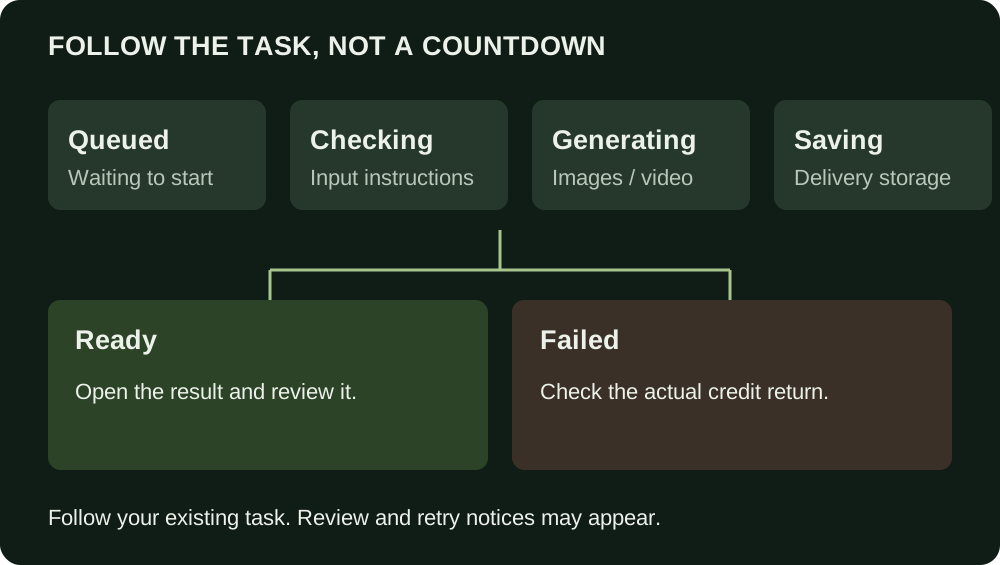
| State or notice | How to interpret it | Useful next action |
|---|---|---|
| Queued / waiting | Your task is waiting to start | Follow the existing task |
| Checking | Instructions or task information are being checked | Wait for an update; do not create a duplicate |
| Check retry | A check is temporarily unavailable or waiting for another attempt | Keep following the current task |
| Generating images or video | A generation stage is in progress | Leave and return if needed |
| Saving | The service is saving or delivering the existing result | Refresh status later, rather than resubmitting |
| Needs review | The current task needs further review or reconciliation | Check My creations or contact support |
| Ready | A result is available for viewing | Play the complete file and inspect it |
| Failed | No successful delivery was completed for this task | Read the reason and the actual credit-return record |
A lost submission response is different from a confirmed failure. If the page cannot confirm whether your request was accepted, use the original-request status check. Any offered retry should refer to that same original request, not a fresh draft. This avoids treating uncertainty as permission to charge again.
Find the video on the website and in email
The creation page shows the selected task's result. My creations is the durable place to return when you close the tab, use another page or have several earlier tasks. Check the task date and identity so that you are reviewing the intended creation rather than an older result.
When service emails are enabled, a completion or processed-failure notice is sent to your account email. Successful-video email delivery may include the video attachment, while the website remains the place to check the current task and result. An email delay or attachment problem must not be mistaken for a new generation failure.
If a message is missing, check the account email and your spam folder, then use My creations. Do not submit another paid task just to obtain an email. Signing into another account will not give it access to the first account's creation history.
Review your result
Watch the entire video before sharing. A successful task state means the workflow delivered a result; it does not certify likeness, anatomy, narrative quality or suitability for every platform.
| Review area | Look for |
|---|---|
| Identity | Both people remain recognizable enough for your intended use |
| Roles | The correct person is infected in the present |
| Anatomy | Hands, limbs and faces do not merge or distort unexpectedly |
| Story | The present and the healthy memory are understandable as different times |
| Framing | Faces and relevant movement are not unintentionally cut off |
| File | The delivered clip, dimensions and audio match the task’s generation settings |
Keep a copy of the downloaded result you need. Storage is not a permanent-backup guarantee. If you add music, captions or edits, review those additions separately and use material you are entitled to use. Treat the video as AI-generated fiction, not proof of a real event.
Understand failures and credit returns
A failed generation and a cash refund for a credit purchase are different events. The task's actual credit records show the amount charged, returned and any relevant adjustment. Do not infer a full credit return from a red failure label alone.
| Situation | What to check |
|---|---|
| Instructions or content were rejected | Read the controlled reason; do not repeat the same prohibited request |
| A check could not complete | Distinguish a retrying check from a terminal failed task |
| Generation or saving failed | Check the final task state and eligible credit return |
| Fewer credits returned than expected | Read the ledger and any payment-refund adjustment; contact support if unclear |
| Email delivery failed but the video is ready | Open the website result; a notification problem is not a reason to generate again |
Eligible project-credit returns follow confirmed failures. Purchases that were already partly refunded can affect what can be restored. A money refund for an unused purchase follows the separate Refund and Credit Policy; this guide does not create a broader refund promise.
Troubleshoot without creating duplicate tasks
| Problem | First check | Avoid |
|---|---|---|
| A photo will not upload | Supported still format, bytes and pixel dimensions | Renaming an unsupported file extension |
| The button is unavailable | Missing photos, checks, balance, account or configuration notice | Clicking repeatedly or opening more tabs |
| The confirmation closes | Check whether you cancelled or returned to the draft | Assuming a charge happened without a submitted task |
| An older task is shown | Read its date; choose whether to view it or prepare a new draft | Confusing the previous creation with a new submission |
| A scene is no longer available | Select from the currently enabled options | Reusing an outdated selection |
| No clear response after confirming | Check the original request status | Sending the draft with a new request ID |
| A result link is unavailable | Refresh the result and check My creations | Assuming the missing player means no task exists |
| Credits look inconsistent | Refresh balance and inspect My credits | Assuming email wording is the financial record |
For unresolved issues, use Support and contact with the relevant task or order reference. Do not send your password, full payment details or unrelated identity documents. Stored media can be managed through Settings → Media and privacy; deletion does not erase the associated financial history or every external copy.
Next step: Create your video, or revisit the photo preparation checklist before uploading.